Help Center
Find answers to all your questions. Search or browse categories below.
Player Guide
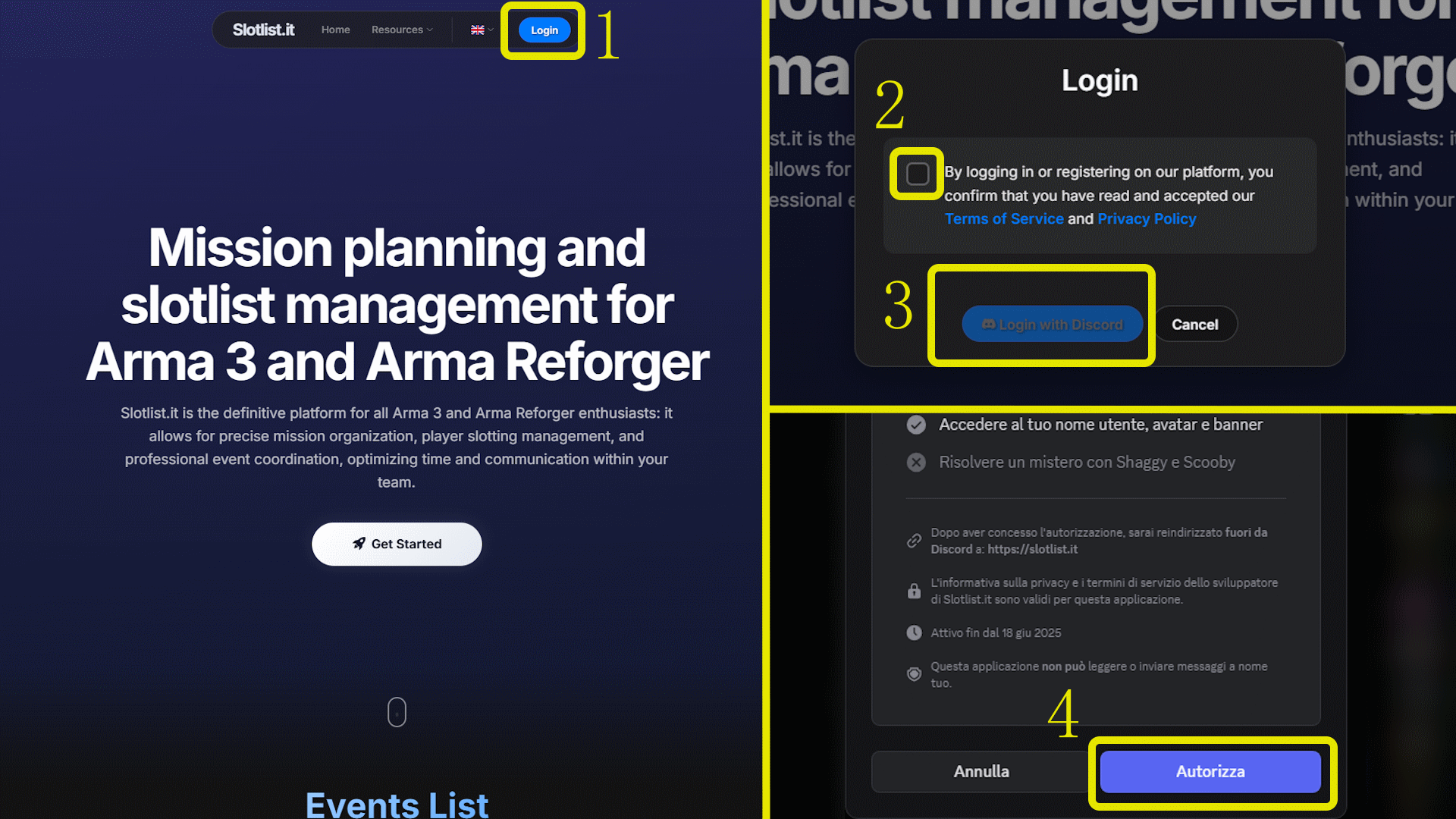
Click the "Login" button located at the top right corner of the page. You'll be redirected to Discord's authorization page. Once you authorize the application, you'll be automatically logged in with your Discord account credentials.
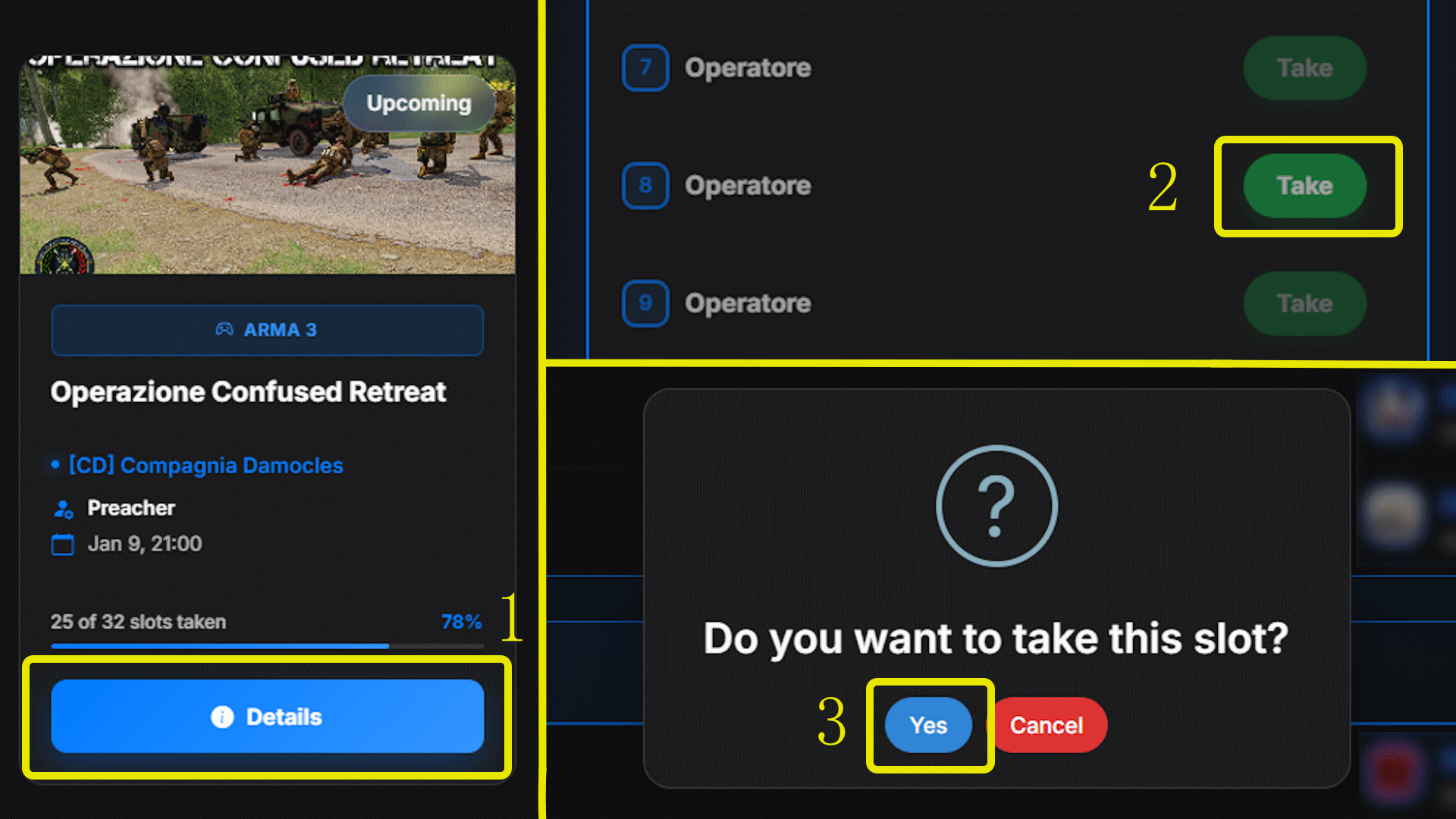
Navigate to the homepage and browse available missions. Click "Details" on the event you're interested in. In the slotlist section, find a free role that suits you and click the green "Take" button next to it to secure your spot.
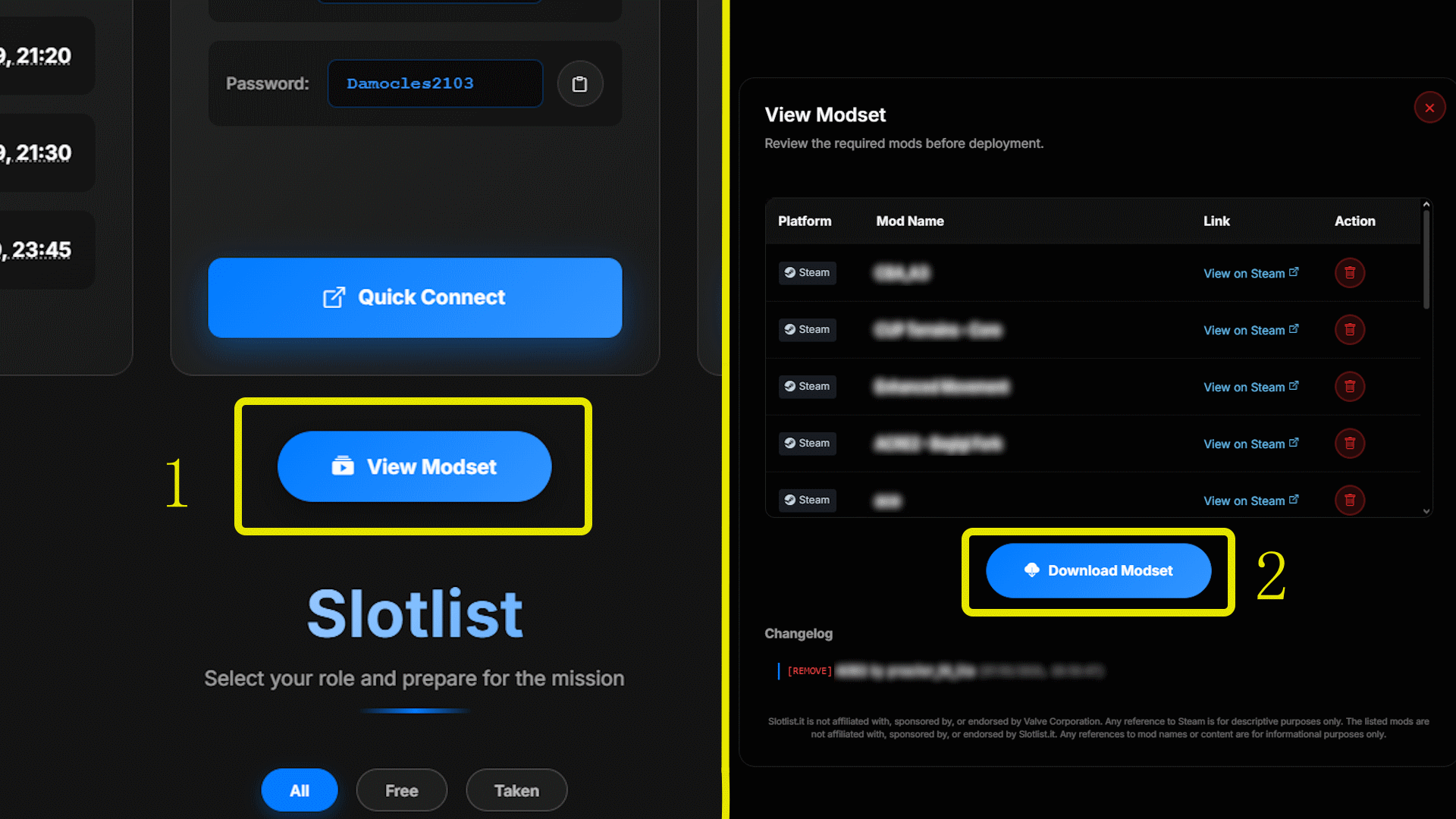
On the event detail page, you'll find a blue "Download Modset" button. Clicking it will download an HTML file that you can import directly into your Arma 3 Launcher to automatically configure all required mods for the event.
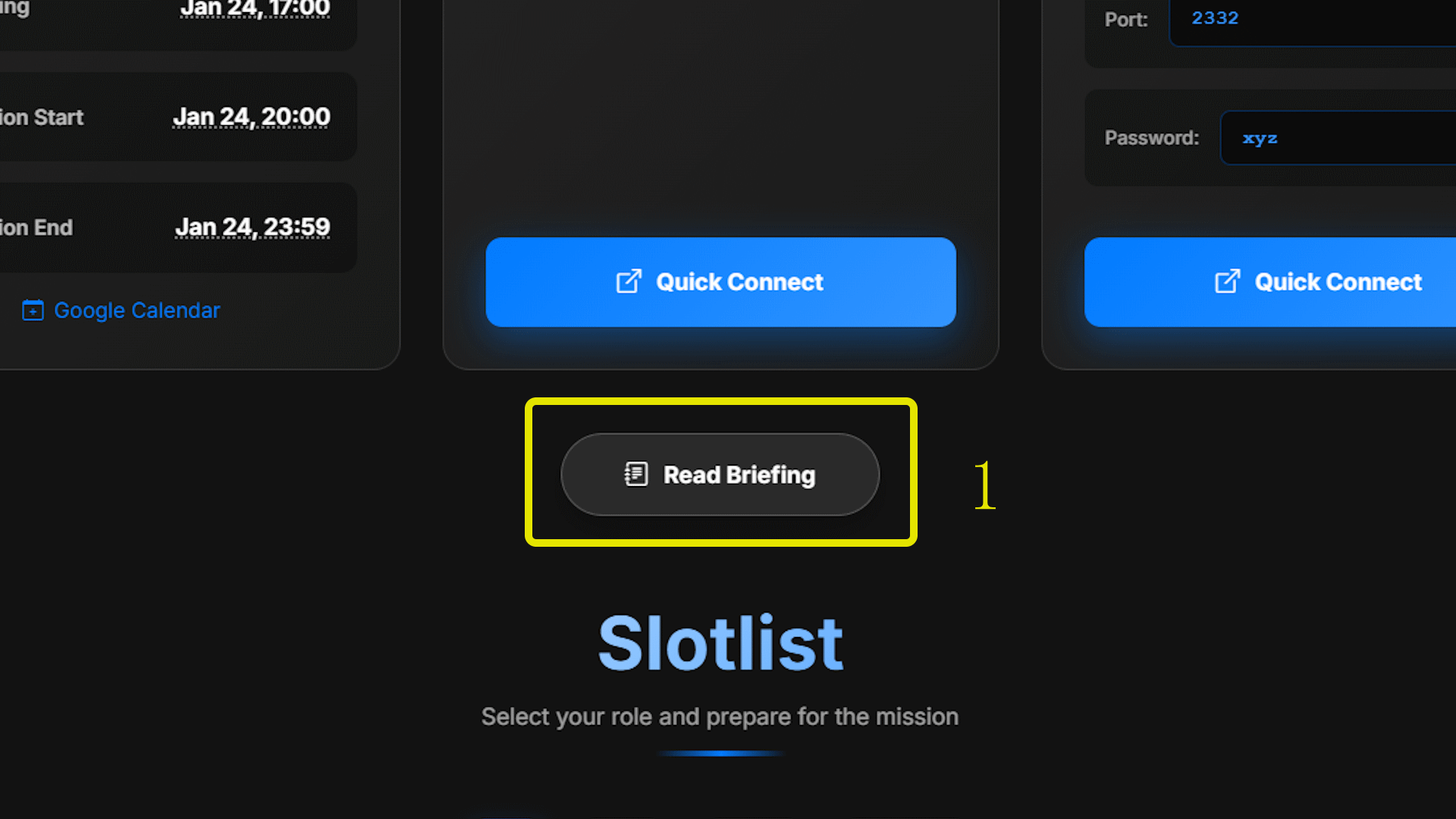
If an event has an advanced briefing available, you'll see a "Read Briefing" button on the event detail page. Click it to open the briefing document in an immersive popup window where you can read all mission details, objectives, and special instructions.
After logging in, navigate to "More" in the main menu and select "My Profile". Here you'll find your complete statistics, earned badges, encomiums received from other players, and a full history of all events you've participated in.
On your profile page, click the "Customize" button. You can change your displayed nickname and choose from dozens of visual themes for your profile page, including animated themes for a unique look.
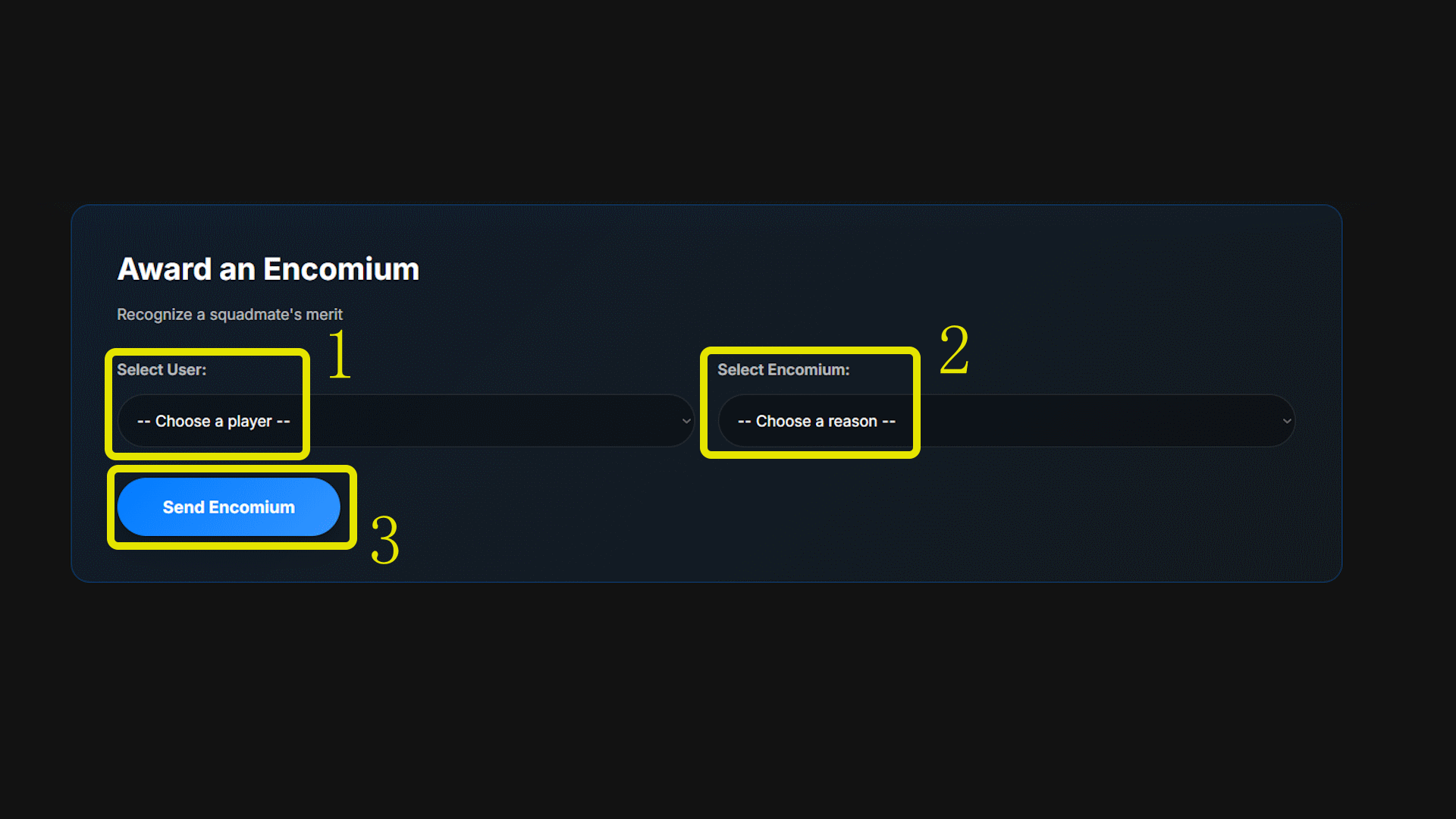
Encomiums are special recognitions you can award to teammates after completing a mission together. At the end of an event you participated in, a panel will appear allowing you to assign an encomium (such as Leadership, Fair Play, Teamwork, etc.) to another player who stood out during the mission.
Go to "More" > "Settings" in the main menu. There you'll find an option to download a comprehensive JSON file containing all data associated with your profile, in full compliance with GDPR regulations.
Found a problem? Navigate to "More" > "Reports" in the menu. You can view existing bug reports and create a new one by describing the issue in detail, including steps to reproduce it if possible.
Click on your username at the top right corner of the page, then click the "Logout" button in the dropdown menu. Your session will be terminated immediately and you'll be logged out of the platform.
On the "Settings" page (accessible via "More" > "Settings"), you'll find an option to permanently delete your account. Please note that this is an irreversible action that will completely erase all your data and activity from the platform.
Visit the Calendar page for a comprehensive overview of all scheduled events. You can switch between monthly and weekly views to better plan your participation. Click on any event in the calendar to be taken directly to its detail page.
Visit the Members List page to browse all operators registered on the platform. You can search for specific users by name, view their profiles, check their statistics, and see their group affiliations.
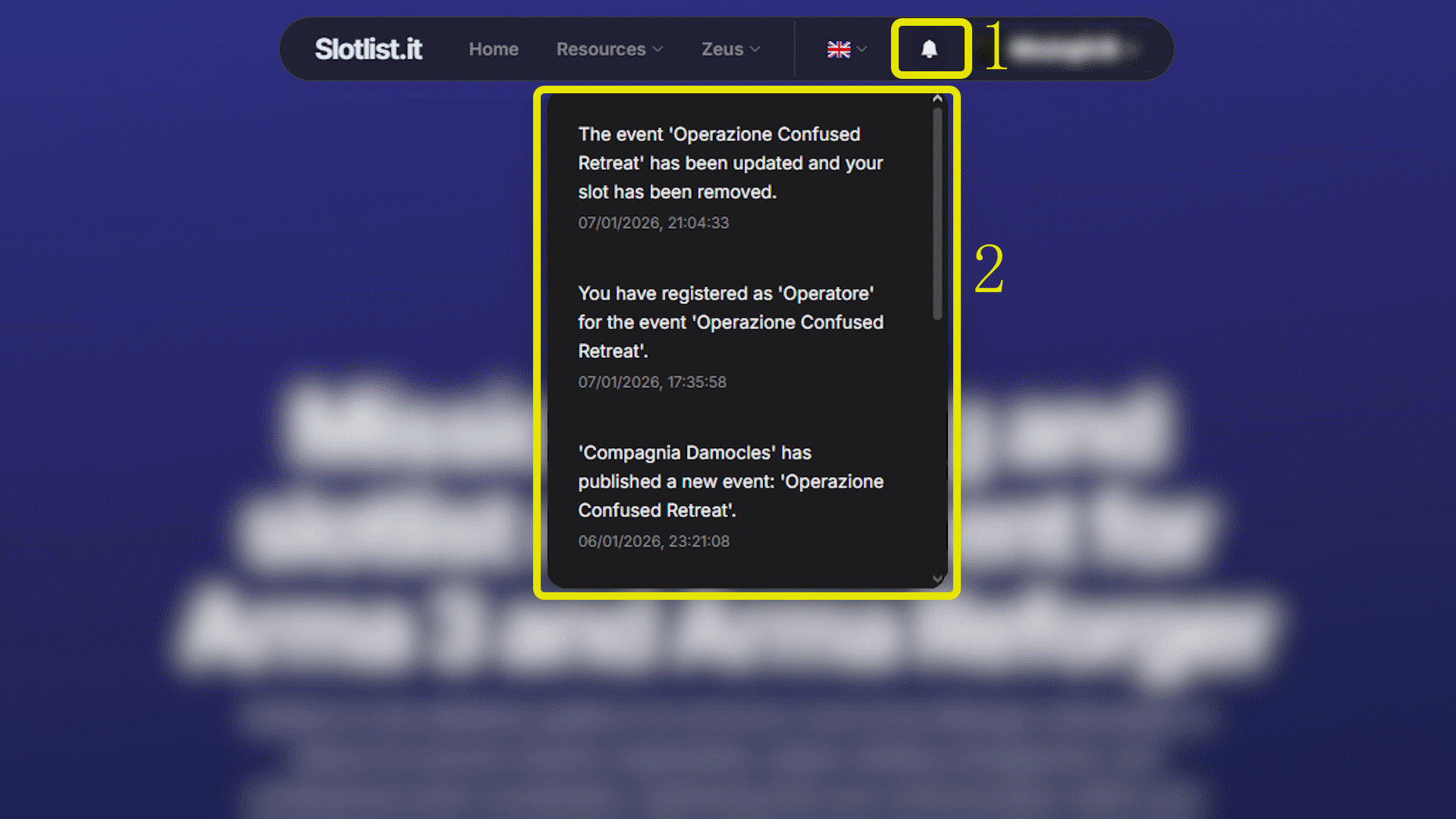
The bell icon in the header alerts you of important activities, such as group acceptance, received encomiums, or event updates. Click the bell to see your most recent notifications, and select "View all" to access your complete notification archive.
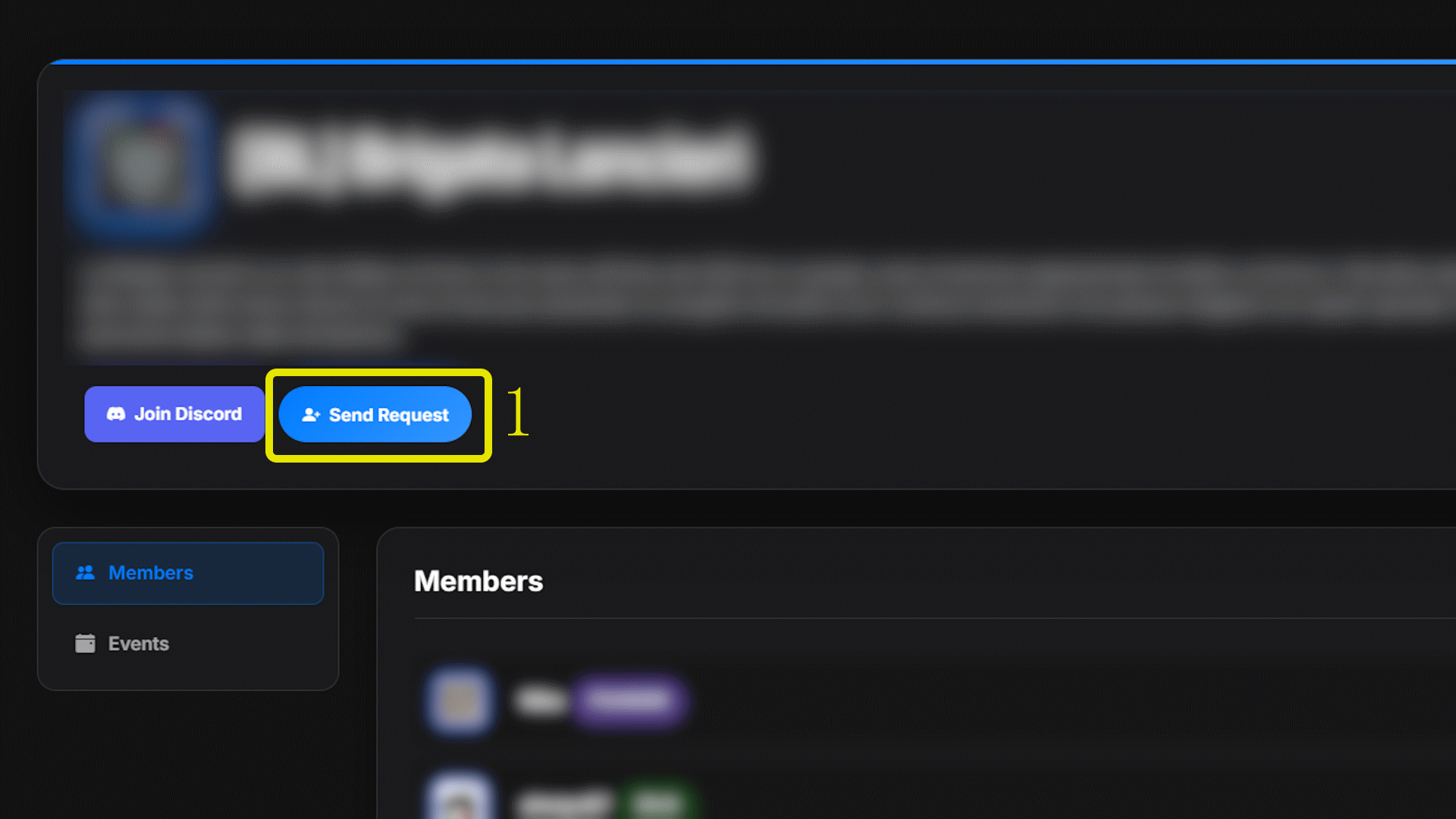
Navigate to the group's page that you wish to join and click the "Send Admission Request" button. The group creator or community managers will review your request and either approve or reject it. You'll receive a notification once a decision has been made.
Group Leader Guide
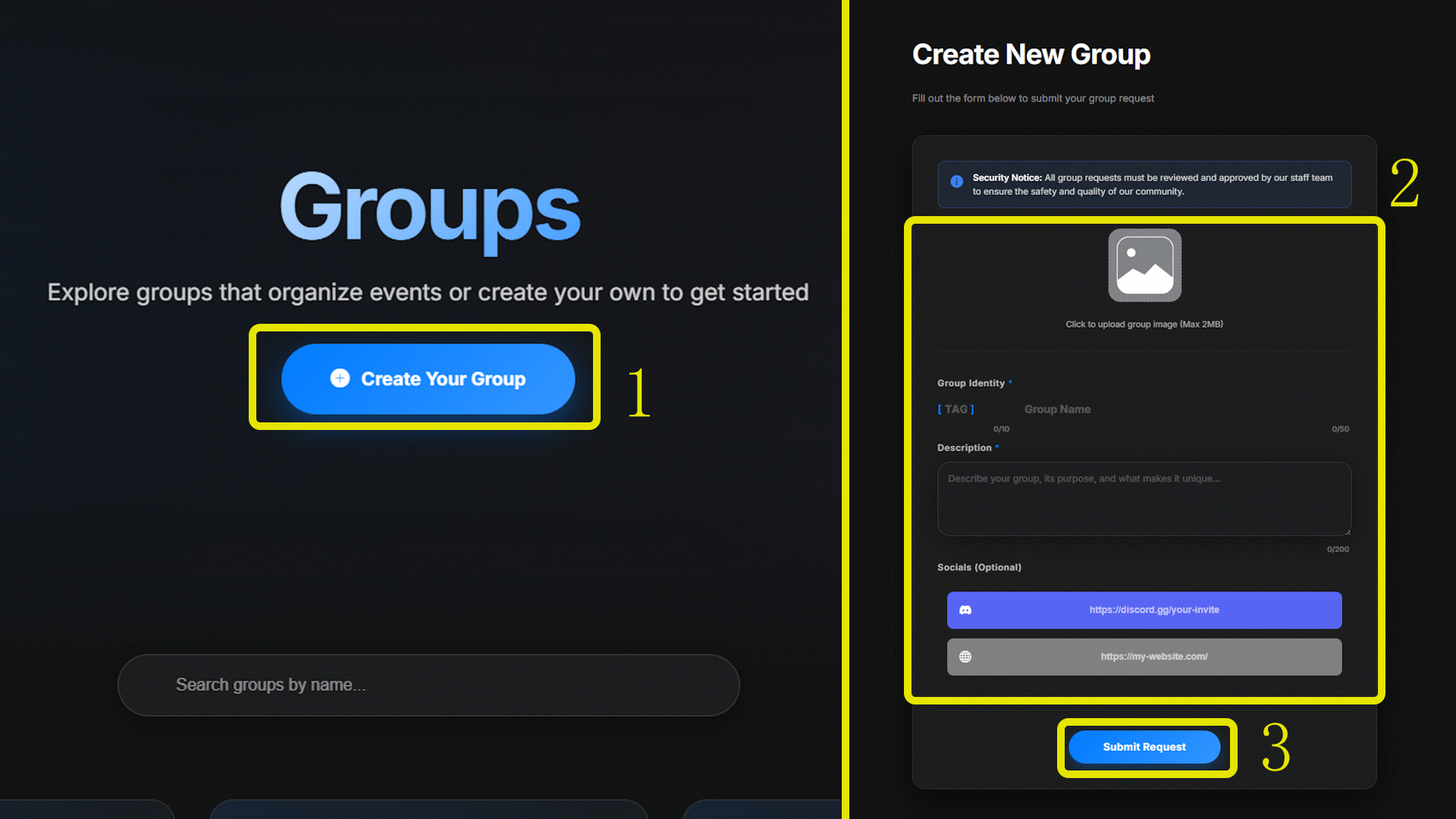
Navigate to the Groups page and click "Create Your Group". Fill in all required details including group name, prefix tag, logo, description, and other relevant information. Submit your request and wait for staff approval before your group becomes active.
After submitting your group creation request, you need to wait for approval from a staff member. Once your request is approved, you'll be automatically promoted to your designated leadership roles (Group Creator) and can start utilizing all of Slotlist.it's group management features. You'll receive a notification when your group is approved.
As the group creator or a community manager, visit your group's page where you'll find an "Edit Group" button. This will take you to a comprehensive form where you can update all group details including name, logo, description, Discord link, and other settings.
As the group creator or community manager, visit your group's page where you'll see an "Admission Requests" panel displaying all pending membership requests. You can approve (✓) or reject (✗) each request individually. Approved members will be automatically added to your group and notified.
As the group creator or community manager, navigate to the members section on your group's page. Next to each member's name (except your own), you'll find a "Kick" button. Click it to remove that member from your group immediately.
As the group creator or a community manager, navigate to the members page on your group's detail page. Click the three dots (⋯) next to a member's name and select "Promote to Zeus". This grants them permissions to create and manage events for your group. You can demote them using the same menu.
As the group creator, navigate to the members page on your group's detail page. Click the three dots (⋯) next to a member's name and select "Promote to Manager". This grants them management permissions to promote other Zeus members and modify all events created by your group's Zeus organizers. You can demote them using the same menu.
If you're a Zeus or higher role, you'll find a "Dashboard" button on your group's page. This takes you to a comprehensive statistics page featuring detailed graphs on most played roles, busiest event days, events created by each Zeus, member activity, and more to help you make data-driven decisions for your group.
Only the group creator can request group deletion. You must contact the staff team through our Support Tickets system to request the permanent deletion of your group. This action is irreversible and will remove all group data from the platform.
Organizer (Zeus) Guide
Navigate to the Zeus Panel and click "Create New Event". Select the group you're creating the event for, then fill in all required fields including event title, description, date/time, map, and the manual slotlist structure. Review and publish when ready.
In the Zeus Panel, you'll see a complete list of your events. Next to each event, you'll find "Edit" and "Delete" buttons. Use Edit to modify event details, or Delete to permanently remove the event from the platform.
On the event creation page, click "Import from mission.sqm" and upload your mission file (must be non-binarized). The system will automatically parse the file and compile the slotlist, mission title, and description for you, saving significant time in event setup.
Navigate to "More" > "My Briefings" to access the advanced briefing editor. Here you can create detailed, formatted briefings with rich text, images, and structured content. Save your briefings to reuse them across multiple events.
When creating or editing an event, you'll find a dropdown menu in the briefing section that displays all your saved briefings. Select the appropriate briefing to associate it with your event. Players will then be able to access it from the event detail page.
Navigate to Zeus Panel > Campaigns and click the "Create New Campaign" button. Fill in the campaign details including name, description, and theme. You can then link multiple events to this campaign to create a connected series of missions.
Go to Zeus Panel > Campaigns, find your campaign in the list, and click the "Edit" button. You can modify all campaign details, including its name, description, and associated events.
First, create a campaign in the campaigns section. Then, when creating or editing an event, you'll find a campaign selection option where you can link your event to an existing campaign. This helps players understand which events are part of a larger story arc.
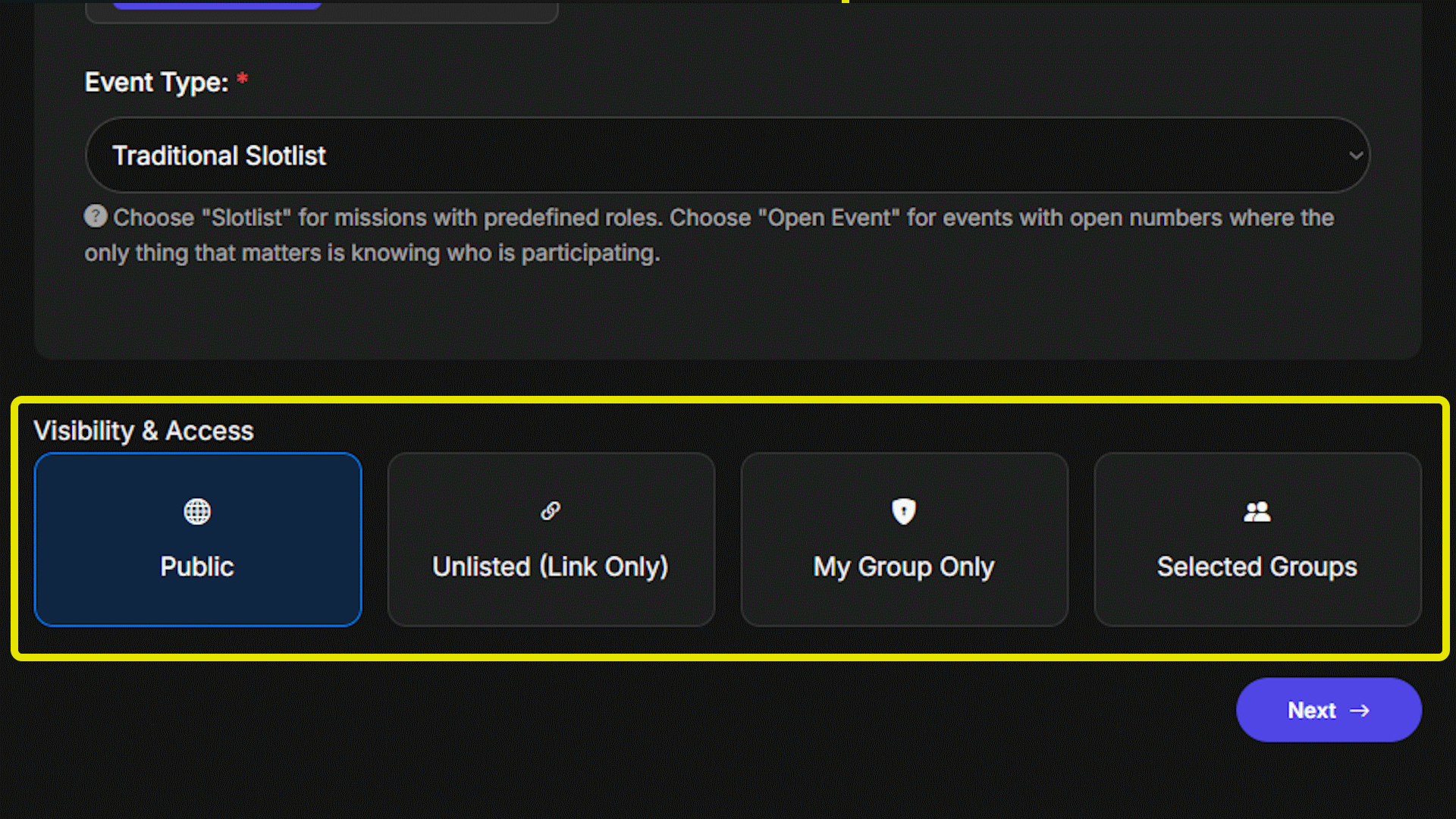
In the event creation or edit page, look for the "Visibility Options" section. You can choose from:
• Public: Visible to everyone on the platform
• Unlisted (Link Only): Only accessible via direct link
• My Group Only: Only visible to members of your group
• Selected Groups: Only visible to members of specific groups you choose
From the main menu, navigate to "Zeus Panel" > "Dashboard" for global statistics across all your events. If you're managing a group, visit your group's page to find a dashboard link with statistics specific to your group's events and member activity.
If you're a Zeus for the event, in the slotlist you'll see a small red button (✗) next to each player's name. Click it to forcibly remove that player from their slot. This is useful for managing last-minute absences or reallocating slots as needed.
In the Zeus Panel, you'll find an "Export Event Structure" section. Select one of your events to download a comprehensive JSON file containing all event data. This is perfect for archiving your missions, sharing them with other organizers, or creating backups.